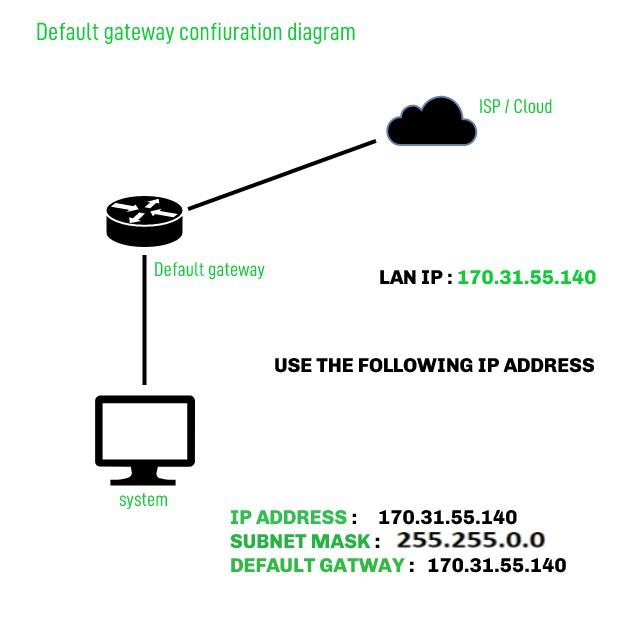
When a laptop joins a home Wi-Fi network, it can usually communicate with other devices on that network. But when it needs to load a website, reach a cloud service, or connect to a server in another country, its data must leave the local network and travel elsewhere. The device needs to know where to send traffic that is not addressed to a nearby device.
That next stop is usually the default gateway. On a home network, it is often the Wi-Fi router. In an office or data centre, it may be a firewall, a Layer 3 switch, a virtual router, or another managed network device. The gateway provides a path from the local network to other networks, including the Internet.
The default gateway is a basic but important part of IP networking. It is related to IP addresses and subnets, but it is not the same as either one. Knowing how it works can help you understand why a device can connect to local printers but not to websites, why a wrong gateway setting can interrupt connectivity, and how to check the gateway on your computer.
This guide explains the default gateway in plain language, shows how to find it on Windows, macOS, and Linux, and walks through basic troubleshooting. If you are new to address ranges, first read our guide to what a subnet is.
What Is a Default Gateway?
A default gateway is the network device a computer sends traffic to when the destination is outside the computer’s local network and no more specific route is available. It acts as an exit point from one network to another.
For example, your laptop may have the private IP address 192.168.1.25 and belong to the subnet 192.168.1.0/24. A printer at 192.168.1.40 is within the same subnet, so the laptop can communicate with it directly over the local network. A public website, however, has an address outside that range. The laptop sends the website-bound traffic to its default gateway, which then forwards it toward the Internet.
The word default is important. A computer can have several routes for different destinations. It may have a specific route to a company network through a VPN and another route to the home network. The default route is used for destinations that do not match a more specific route. On an IPv4 system, it is commonly represented as 0.0.0.0/0. On IPv6, the corresponding default route is ::/0.
A device can have more than one default route, for example when it has both Ethernet and Wi-Fi connections or uses multiple network interfaces. In that case, the operating system uses its routing table and route metrics to decide which route to prefer. So, “the default gateway” often refers to the preferred gateway for a particular network interface, rather than one universal gateway for every connection.
How Does a Default Gateway Work?
When an application sends data, the computer checks the destination address and consults its routing table. The routing table contains information about which network interface and next hop should be used for different destinations.
If the destination is part of the computer’s local subnet, the computer can usually send the data directly to the destination device. If the destination is outside the local subnet, the computer looks for a matching route. When there is no more specific route, it uses the default route and sends the packet to the default gateway.
The computer does not normally send the packet straight to the final website’s server across the entire Internet. Instead, it sends the packet to the gateway on the local network. The gateway examines its own routing information and forwards the packet to another router or provider. The packet may pass through many networks before reaching its destination.
A simplified path looks like this:
Your device
↓
Default gateway on your local network
↓
Internet provider or organisation network
↓
Other networks
↓
Destination server
The response travels back through the network using routing decisions made along the way. The path back does not necessarily use exactly the same intermediate networks as the outgoing path.
The default gateway’s main role is forwarding traffic between networks. It may also perform other functions, such as firewall filtering, Network Address Translation (NAT), VPN handling, or Wi-Fi management. These functions are often combined in a home router, but they are technically separate tasks. A gateway does not have to perform NAT, and a device performing NAT is not necessarily the only gateway in a larger network.
Default Gateway, Router, and IP Address
A router is a device or software system that forwards traffic between IP networks. A default gateway is the router or next-hop address that a device uses as its default exit route. In a home network, the router’s local address is commonly configured as the default gateway, so the terms are often used interchangeably in everyday conversation.
The default gateway itself also has an IP address on the local network. For example, a home router might use 192.168.1.1, while devices connected to it receive addresses such as 192.168.1.25 or 192.168.1.60. The gateway address must be reachable from the local network interface that uses it.
An IP address identifies an interface or endpoint. A subnet describes a range of addresses. The default gateway identifies where traffic should go when its destination is not inside the local range. These concepts work together, but they answer different questions:
- IP address: What address is assigned to this interface?
- Subnet: Which addresses are considered local?
- Default gateway: Where should traffic go for other destinations?
For example, if a computer has IP address 192.168.1.25 with subnet mask 255.255.255.0, it is normally part of 192.168.1.0/24. A gateway such as 192.168.1.1 is within that local range, so the computer can reach it directly.
For more background, see our guides to IP addresses and IPv4 vs IPv6.
How a Device Knows Whether a Destination Is Local
A computer uses its own IP address and subnet information to decide whether a destination is local. The subnet mask or prefix length tells it how much of the address identifies the network. The computer compares the destination with its own network range.
If the destination belongs to the same subnet, the computer tries to reach it directly through the local network. If it belongs to another subnet, the computer sends the traffic to a router. For ordinary Internet destinations, that router is usually selected by the default route.
This distinction explains why the default gateway needs to be configured correctly. If the IP address or subnet mask is wrong, the device may incorrectly decide that a destination is local or remote. It may try to contact the destination directly when it should use a router, or send traffic to the gateway when it should communicate locally.
Address configuration is commonly provided automatically by a service such as DHCP on IPv4 networks. DHCP can provide an IP address, subnet mask, default gateway, and DNS resolver to a device. If those settings are configured manually, each value must match the actual network design.
How to Find the Default Gateway on Windows
On Windows, the quickest method is to use Command Prompt. Open the Start menu, search for Command Prompt, and run:
ipconfigFind the active network adapter, such as Wireless LAN adapter Wi-Fi or Ethernet adapter Ethernet. Under that adapter, look for Default Gateway. The address may look like 192.168.1.1 or 10.0.0.1. If the computer is connected to both Wi-Fi and Ethernet, check the adapter that is currently carrying the traffic you want to troubleshoot.
You can also use PowerShell to view the default route in the routing table:
Get-NetRoute -DestinationPrefix "0.0.0.0/0" |
  Sort-Object RouteMetric |
  Format-Table InterfaceAlias, NextHop, RouteMetric
The NextHop value is the gateway for that route. If the computer uses IPv6, inspect the IPv6 default route with:
Get-NetRoute -DestinationPrefix "::/0" |
  Sort-Object RouteMetric |
  Format-Table InterfaceAlias, NextHop, RouteMetric
If the gateway field is blank, first confirm that the adapter is connected and has received network configuration. A disconnected adapter or a manually configured network with incomplete settings may not show a usable gateway.
How to Find the Default Gateway on macOS
On macOS, you can find the IPv4 default gateway using Terminal:
route -n get defaultLook for the line labelled gateway. It shows the next-hop address for the current IPv4 default route. The output may also include the network interface used for the route.
For an IPv6 default route, use:
route -n get -inet6 defaultYou can also view network details through the macOS user interface. Open System Settings, select Network, choose the active connection such as Wi-Fi or Ethernet, and view its details. The exact layout varies slightly by macOS version, but the router or gateway information is shown with the connection’s TCP/IP settings.
If you use a VPN, the result may differ from the gateway on your physical Wi-Fi or Ethernet connection. Some VPNs install a new default route so that Internet traffic passes through the VPN. Others route only selected destinations through the tunnel. Check the active routes and interface when diagnosing a specific connection.
How to Find the Default Gateway on Linux
On most modern Linux distributions, open a terminal and run:
ip route show defaultA typical IPv4 result might look like:
default via 192.168.1.1 dev wlan0 proto dhcp metric 600Here, 192.168.1.1 is the next hop, and wlan0 is the network interface. The route may use a different interface name, such as eth0, enp3s0, or wlp2s0.
To view the IPv6 default route, run:
ip -6 route show defaultA typical result may begin with:
default via fe80::1 dev wlan0IPv6 gateways are often link-local addresses beginning with fe80::. A link-local address is valid on the local network segment and is commonly used by routers to advertise themselves to IPv6 devices.
Older Linux documentation may show route -n or netstat -rn, but the ip route commands are the current standard on most distributions. If the output is empty, verify that the interface is connected and that the system has received router or DHCP configuration.
What Is the Difference Between a Gateway and a DNS Server?
A gateway and a DNS server perform different jobs. The gateway forwards traffic to other networks. A DNS server translates domain names, such as example.com, into IP addresses that computers can use to connect to the service.
A computer often needs both. When you enter a website name, the device first uses DNS to look up the destination’s IP address. Then the routing table determines whether the destination is local or remote. If it is remote, the computer sends the traffic to its default gateway.
This difference can help with troubleshooting. If you can reach a public IP address but websites do not load by name, DNS may be the problem. If you cannot reach either a public IP address or a domain name, the issue may involve the local connection, gateway, upstream network, firewall, or another routing problem.
Changing the DNS server will not usually fix an incorrect default gateway. Likewise, changing the gateway does not correct a wrong DNS record. It is helpful to test these components separately rather than changing several network settings at once.
How to Test Whether the Default Gateway Is Reachable
After finding the gateway address, you can test whether your device can reach it. On Windows, use:
ping 192.168.1.1On macOS or Linux, the same command is available:
ping 192.168.1.1Replace 192.168.1.1 with the address shown on your device. For an IPv6 gateway, use its IPv6 address. On Linux and macOS, you may need to specify the interface or zone for a link-local IPv6 address, for example:
ping6 fe80::1%wlan0A successful response indicates that the gateway answered the ping from your local network. However, a failed ping does not necessarily mean the gateway is offline. Firewalls and routers may block or rate-limit ICMP echo requests. Wi-Fi client isolation can also prevent devices from reaching one another even when the Internet connection is working.
Use ping as one clue, not as the only test. You can also try opening the router’s management page if appropriate, checking whether other devices can access the Internet, or running a traceroute to a known destination.
On Windows, use:
tracert 1.1.1.1On macOS or Linux, use:
traceroute 1.1.1.1The first hop normally represents the local gateway or the next router in the path. Some routers do not respond to traceroute probes, so missing responses are not always evidence of a fault.
Common Default Gateway Problems
One common problem is a missing default gateway. A computer may still communicate with devices on its local subnet but fail to access the Internet or other networks. This can happen when DHCP did not complete successfully, a manual configuration omitted the gateway, or the network interface is disconnected.
A second problem is an incorrect gateway address. If a device is configured to use an address that does not exist on its local network, it cannot forward remote traffic successfully. A gateway that is outside the configured subnet may also be unreachable unless the network has a special design to support that arrangement.
Another issue is having multiple default routes. A laptop may have Wi-Fi, Ethernet, and a VPN active at the same time. The operating system chooses a route based on metrics and policy, which can cause traffic to use an unexpected interface. This may appear as slow connectivity, access to the wrong network, or loss of access to internal services.
Finally, the gateway itself may be working while its upstream connection is not. In that case, a device may be able to reach the local router but not reach the Internet. The fault could be with the modem, provider connection, firewall policy, DNS service, or a remote network. Testing each part separately helps narrow down the cause.
A Practical Default Gateway Troubleshooting Process
Start by confirming the device is connected to the expected Wi-Fi or Ethernet network. Then check the assigned IP address, subnet mask or prefix, and default gateway. Make sure the gateway belongs to the expected network and that the device has not joined a guest or isolated network by mistake.
Next, test communication with the gateway. If the gateway responds, test an external IP address and then a domain name. If the external IP works but the domain does not, investigate DNS. If the gateway responds but external addresses do not, inspect the router’s upstream connection, firewall policy, or provider status.
If multiple interfaces or a VPN are active, check which default route is preferred. Temporarily disconnecting an unneeded VPN or switching between Wi-Fi and Ethernet can help isolate the issue, but avoid changing persistent network settings until you understand the current configuration.
In a business or data-centre environment, do not replace the gateway address based on guesswork. Gateways may be redundant virtual addresses or part of a managed routing design. Consult the network documentation or administrator before changing static settings, especially on production servers.
Is the Default Gateway Always a Physical Router?
No. The gateway is a logical next hop, and it does not have to be a standalone physical router. It may be a firewall, Layer 3 switch, virtual router, cloud networking service, or a redundant gateway shared across multiple devices.
In larger networks, users may see a gateway address that is not assigned to one specific physical device. It may be a virtual IP address that can move between routers if one device fails. This design helps preserve connectivity during maintenance or hardware failure.
Cloud environments also use logical gateways. A virtual machine may send traffic to a virtual network interface, cloud router, NAT gateway, VPN gateway, or Internet gateway service. The network provider manages much of the forwarding infrastructure behind the scenes.
The practical meaning remains the same: the device sends traffic to a next hop that can reach destinations outside its local network. The equipment and implementation vary with the size and design of the network.
Frequently Asked Questions About Default Gateways
Is the default gateway the same as my router’s IP address?
On a typical home network, the router’s local IP address is usually the default gateway for connected devices. In larger networks, the gateway may be a firewall, switch, virtual router, or redundant logical address rather than the management address of a particular physical router.
Can I use the Internet without a default gateway?
You may be able to communicate with devices on the same local subnet, but you generally cannot reach destinations outside it without a suitable route. A default gateway is the usual route for destinations that do not match a more specific route.
Why can I access local devices but not the Internet?
Your device may have a working local connection but no valid default route, or the gateway may have lost its upstream connection. DNS, firewall rules, provider outages, or VPN routing can also cause this pattern. Check the gateway and test an external IP address separately from a domain name.
Why is my default gateway blank?
The network adapter may be disconnected, DHCP may have failed, or a manual configuration may be incomplete. Check that you are inspecting the active adapter and that it has received a valid IP address and subnet configuration.
Can a computer have more than one default gateway?
Yes. A computer with multiple active interfaces, such as Wi-Fi and Ethernet, may have more than one default route. The operating system uses route metrics and policy to select one for particular traffic. VPN software may also add or replace a default route.
Does the default gateway provide Wi-Fi?
Not necessarily. A home device often combines a router, gateway, firewall, switch, and Wi-Fi access point in one box. In business networks, these functions are commonly provided by separate devices.
Is the default gateway part of the same subnet as my device?
In ordinary IPv4 and IPv6 local-network designs, the gateway is directly reachable through the local interface, which usually means it is on the same link or local network segment. Special designs can differ, so use the network’s documentation rather than assuming every gateway must follow a simple home-router pattern.
Last
A default gateway is the next hop a device uses to reach networks beyond its local subnet. At home, it is commonly the local address of the Wi-Fi router. In a business, data centre, or cloud environment, it may be a firewall, Layer 3 switch, virtual router, or managed gateway service.The device combines its IP address, subnet information, routing table, and default route to decide where to send traffic. If the destination is local, it can usually communicate directly. If the destination is remote and no more specific route applies, it sends the traffic to the default gateway.You can find the gateway using ipconfig on Windows, route -n get default on macOS, or ip route show default on Linux. When troubleshooting, verify the active interface and its address settings, then test the gateway, external IP connectivity, and DNS separately. Remember that a failed ping alone does not prove the gateway is down, because ICMP may be filtered.
Once you understand the default gateway, IP addresses and subnets become easier to interpret. Continue with our guides to subnets, IP addresses, and IPv4 vs IPv6 to build a stronger foundation in networking.