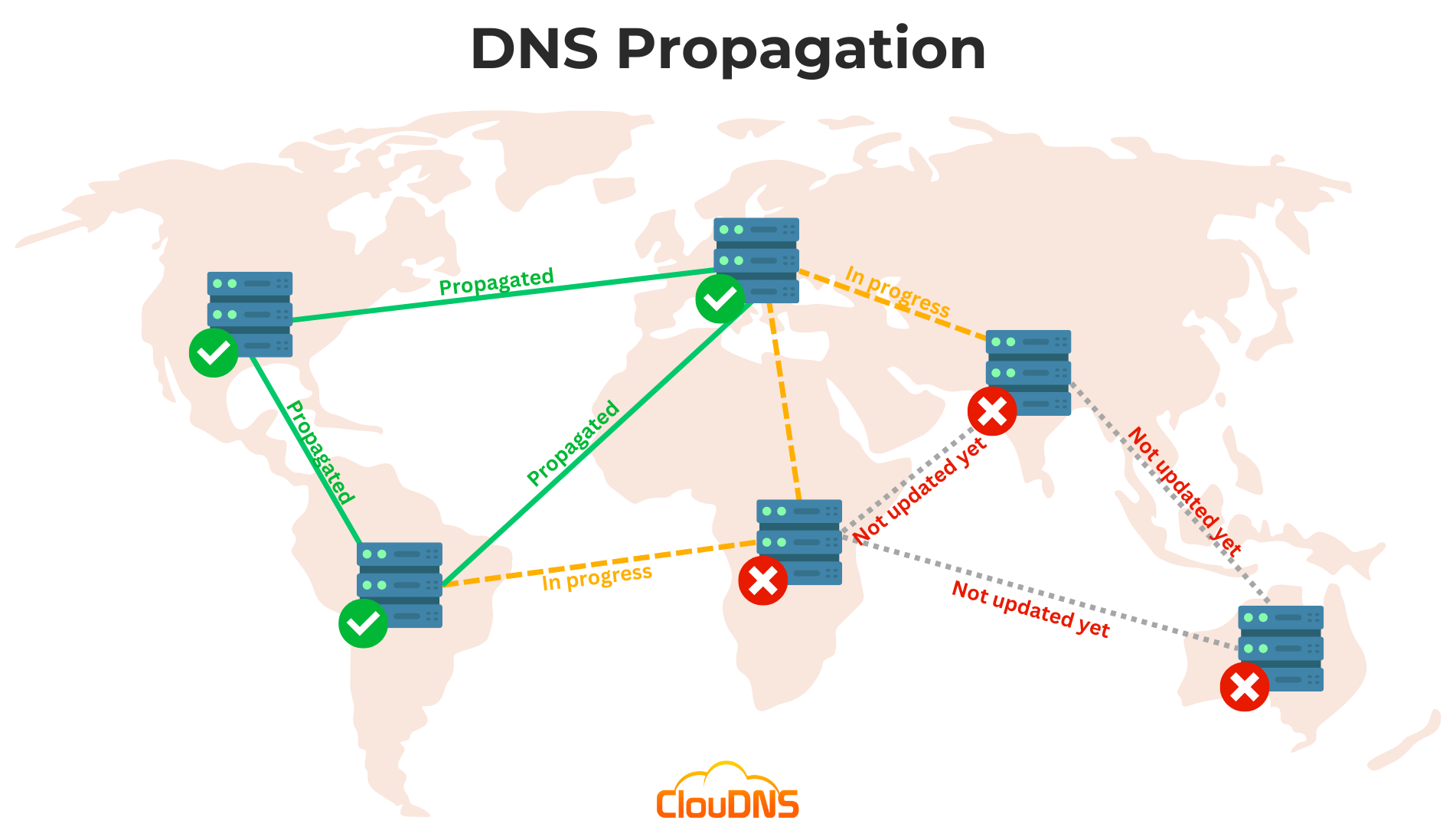
You update a domain’s DNS records, save the change, and expect the new website or mail service to work immediately. But a colleague still sees the old website, an online checker shows a different address, or email delivery behaves inconsistently. This delay is commonly called DNS propagation.
The phrase can make it sound as though a single update is travelling through a central Internet system. DNS is distributed, however. Domain information is stored and cached across authoritative name servers, recursive resolvers, routers, operating systems, and applications. Each system may refresh its information at a different time.
Most DNS changes become visible as caches expire and resolvers retrieve fresh records. How long this takes depends on the record’s previous Time to Live (TTL), resolver behaviour, and whether the authoritative DNS configuration is correct. There is no universal time that guarantees every user will see the new answer.
This guide explains what people mean by DNS propagation, why DNS changes appear at different times, how to check a domain’s current answers, and what to do when an update still seems incomplete.
What Does DNS Propagation Mean?
DNS propagation is the common term for the period during which different users or DNS resolvers may receive different answers after DNS records have been changed. A user in one network may already see the new IP address, while another user’s resolver continues returning a cached older address.
The underlying DNS change is made on the authoritative name servers for the domain. Recursive resolvers then retrieve and cache records for their users. Those resolvers do not necessarily ask the authoritative servers again every time someone visits the domain. They can reuse a cached answer while it remains valid.
This is why “propagation” is better understood as cache expiry and refresh. There is no central copy that must update on every Internet-connected device at once. The authoritative record may already be correct even while some resolvers continue serving older cached data.
How DNS Caching Works
When a browser needs to find a domain’s IP address, it asks the operating system to resolve the name. The operating system may have a cached answer. If it does not, it asks a configured recursive resolver, such as one operated by an Internet provider, a company, or a public DNS service.
The recursive resolver may also have a cached answer. If that answer is still within its cache lifetime, it can return it without contacting the authoritative name servers. When the cached record expires, the resolver can query the authoritative DNS system and store the updated answer.
Caching reduces lookup time and the load on DNS infrastructure. It also means that record changes are not necessarily visible to every resolver at the same moment. The old answer remains usable by a resolver until its cache expires or the resolver otherwise refreshes it.
Different users may use different recursive resolvers. Even people in the same household can see different answers if their devices use different DNS services, VPNs, mobile networks, or local caches.
What Is TTL in DNS?
TTL stands for Time to Live. It is a value, usually measured in seconds, that tells recursive resolvers how long they may cache a DNS record before checking for an updated answer.
For example, a TTL of 3600 means one hour. If a resolver retrieves a record with that TTL, it can generally keep using the answer for up to an hour before it needs to refresh it. A TTL of 300 means five minutes.
The TTL that matters after a change is usually the TTL of the old record that resolvers already cached. Lowering the TTL immediately before changing a record may not shorten the waiting time for resolvers that cached the previous, higher TTL. Those resolvers may continue using the old answer until the original cache period expires.
For planned migrations, administrators often reduce TTL in advance, wait long enough for the previous TTL to expire, then make the DNS change. After the change is stable, they may increase the TTL again to reduce repeated queries. The appropriate values depend on the service and the operator’s change process.
Why Do DNS Changes Take Different Amounts of Time?
The most common reason is that resolvers have different cached copies. Some may have already refreshed the record, while others are still using an unexpired answer. A resolver may also apply its own refresh behaviour or cache negative answers, which are responses indicating that a record does not exist.
Local caching can add another layer. A computer, router, browser, or security application may temporarily retain DNS information. Restarting a browser or clearing the operating system’s DNS cache can help in some cases, but it will not change what a recursive resolver still has cached.
DNS provider changes can introduce additional timing factors. If you change the domain’s authoritative name servers at the registrar, resolvers may need to refresh delegation information as well as the records served by those name servers. This is a different change from editing an A or AAAA record within the same DNS hosting service.
Finally, an update may not be correct at the authoritative source. If the wrong record was edited, the change was not saved, the domain uses different authoritative name servers, or the record contains a syntax error, waiting will not fix the underlying configuration.
DNS Propagation vs Authoritative DNS Updates
An authoritative DNS server provides the official records for a domain or zone. When you edit a record in your DNS provider’s control panel, the provider should update the authoritative data it serves.
A recursive resolver serves DNS answers to client devices. It may have cached data from before the change. Therefore, the authoritative server can return the new address while a recursive resolver continues to return an older one.
This distinction is useful when troubleshooting. First check what the authoritative name servers return. If they already have the expected record, the change has been published at the source, and remaining differences are likely due to caching or resolver behaviour. If authoritative servers still return the old value or no value, investigate the DNS provider’s configuration and the records themselves.
Changing nameservers adds another layer. The parent DNS zone must point to the intended authoritative name servers, and those servers must serve the correct zone. A correct record on a DNS provider is not useful if the domain is delegated to a different provider’s name servers.
Common DNS Changes and Their Effects
Changing an A record changes the IPv4 address returned for a hostname. Changing an AAAA record changes its IPv6 address. If both are present, clients may use either address family depending on their network and connection behaviour.
Changing a CNAME record changes the hostname to which an alias points. Resolvers may then need to look up the target name and its address. A change to the target’s records can affect the final result even if the CNAME itself remains unchanged.
Changing an MX record affects which mail servers receive email for a domain. Mail systems may cache these records, and email routing can take time to reflect updates. When changing mail providers, administrators should verify MX records and any related mail authentication records, such as SPF, DKIM, or DMARC, separately.
Changing nameservers changes which DNS provider is authoritative for the domain. This requires correct delegation at the registrar and correct zone configuration at the new provider. A nameserver migration should be planned carefully because missing records at the new provider can make websites, email, or other services unavailable.
How to Check Whether a DNS Change Has Appeared
Start by querying the domain from the computer you are using. On Windows, macOS, and Linux, nslookup is commonly available:
nslookup example.comTo check an IPv4 address record, use:
nslookup -type=A example.comFor IPv6:
nslookup -type=AAAA example.comFor mail-server records:
nslookup -type=MX example.comOn macOS and Linux, dig provides more detailed output:
dig example.com ATo show only the answer section:
dig example.com A +noall +answerYou can query a specific recursive resolver to compare answers. For example:
dig @1.1.1.1 example.com AOn Windows, you can specify a DNS server with:
nslookup example.com 1.1.1.1Replace example.com with your domain. The resolver address in these examples is only one possible public resolver; you can query the DNS service used by your organisation or provider as well.
Record the resolver you queried, the response, and the time. Comparing results from multiple resolvers helps determine whether the difference is local to one resolver or appears more widely.
How to Query an Authoritative Name Server
To find the authoritative name servers for a domain, use:
dig example.com NSThen query one of those name servers directly for the record you changed:
dig @ns1.example-dns.com example.com AReplace ns1.example-dns.com with an authoritative server listed for your domain. If the direct query returns the expected address but a recursive resolver returns the old one, the authoritative data is updated and the resolver may still be using a cached answer.
You can also ask dig to trace the delegation process:
dig +trace example.comThis follows the DNS hierarchy from the root toward the domain’s authoritative servers. It can help identify delegation problems, though its output is more detailed than most basic checks require.
If you are using a DNS provider’s control panel, confirm that the domain is actually delegated to the name servers shown there. A record can be correct in one provider’s dashboard while the public domain points to another provider.
What If Some Users See the Old Website?
First, confirm that the authoritative A or AAAA record has the intended value. Then query several recursive resolvers and check whether they return the same answer. If the authoritative data is correct but some resolvers return an older address, caching is a likely explanation.
Next, check the user’s local configuration. A VPN, company DNS resolver, security product, browser cache, or local hosts file can affect what address is returned. Compare the result from another network, such as a mobile connection, to see whether the behaviour changes.
Also consider whether the old and new servers both respond. A migration may appear inconsistent if the old host still serves a cached copy or redirects differently. The DNS record can be correct while the old server remains accessible to users whose resolver has not refreshed.
If the problem affects only IPv4 or only IPv6, compare A and AAAA records separately. A device may connect through IPv6 while another uses IPv4. One address family may point to the new server while the other still points to the old one.
What If a Website Is Unavailable After a DNS Change?
Check that the domain’s authoritative name servers are correct and reachable. Then verify that the relevant records exist on those servers. If you recently changed nameservers, make sure the new DNS provider has all required records, including website, email, verification, and service records.
Confirm that the destination server is ready to accept connections for the domain. Updating DNS only changes where clients are directed. It does not configure the web server, install a certificate, open a firewall port, or copy website files.
If DNS returns the expected IP address but the website still fails, test the server and application separately. The problem may be with the web server, firewall, TLS certificate, hosting configuration, or application. A DNS lookup confirms name resolution; it does not confirm that the service is healthy.
For a general path check between your device and a destination, see our guide to using traceroute to diagnose network connection problems. Traceroute and DNS lookups test different parts of the connection, so they are useful together when narrowing down a problem.
Negative Caching and “Record Not Found” Results
Resolvers can cache the fact that a record does not exist. This is called negative caching. If a resolver queried a name before the record was created, it may temporarily continue returning a “not found” response even after the record has been added.
Negative caching has a TTL too, based on information in the zone’s SOA record and resolver rules. The exact behaviour can vary. If a newly created subdomain does not resolve immediately, check the authoritative name server first. If it returns the new record, wait for negative caches to expire and compare other resolvers.
A “record not found” response can also indicate that the record was added to the wrong zone, the hostname was entered incorrectly, or the domain uses different authoritative name servers. Confirm the full hostname, record type, and DNS provider before assuming the issue is only propagation delay.
How to Plan a DNS Migration
Before changing records for a production service, list every hostname and record the service depends on. A website may use A and AAAA records, while email depends on MX, SPF, DKIM, and DMARC records. Applications may also rely on verification or service-discovery records.
If the change is planned, reduce the relevant TTL in advance and wait at least the previous TTL period before switching the destination. Prepare the new server or provider before updating DNS. Test it directly where possible, and confirm that certificates, firewall rules, application settings, and mail services are ready.
After the change, check authoritative answers and several recursive resolvers. Monitor website availability, email delivery, and application errors. Keep the old service available during the transition when practical, because some users may continue reaching it while cached answers expire.
Once the new configuration is stable, restore a suitable TTL. Keeping a very low TTL indefinitely can increase DNS query volume without providing much benefit for a service that rarely changes.
Common DNS Propagation Misunderstandings
One common misunderstanding is that every DNS change takes exactly 24 or 48 hours. There is no fixed universal duration. The effective delay depends on previous TTL values, resolver caching, delegation changes, and the correctness of the authoritative configuration.
Another misunderstanding is that clearing a browser cache updates DNS everywhere. It may clear information stored on that device, but it cannot clear a remote recursive resolver’s cache. Likewise, restarting a router may clear its local cache but does not change authoritative records.
A third misunderstanding is that a DNS checker showing different answers proves the domain is broken. Different answers can occur during a planned migration, especially when resolvers have cached data at different times. The important question is whether the authoritative records are correct and whether the remaining differences are consistent with the previous TTL.
Finally, DNS propagation does not configure the destination service. A correct IP address can still lead to an unavailable website if the server, firewall, TLS certificate, or application is not ready.
Frequently Asked Questions About DNS Propagation
How long does DNS propagation take?
There is no single guaranteed duration. Some changes appear quickly, while others remain inconsistent until cached records expire. The previous TTL, resolver behaviour, and whether nameservers changed all affect the timing.
Does lowering the TTL make a change instant?
No. Lowering a TTL affects future caching after resolvers retrieve the new TTL. Resolvers that already cached the old record may continue using it until its previous TTL expires.
Why do DNS checkers show different results?
They may query different recursive resolvers from different locations. Those resolvers can have different cached answers, refresh at different times, or receive different answers due to geographic DNS policies.
Should I flush my computer’s DNS cache?
It can help when your own device has cached an old answer. It does not clear caches held by your Internet provider, company resolver, or public DNS service.
Why does my website resolve but still fail to load?
DNS may be returning the correct address while the destination server or application has a problem. Check the web server, firewall, TLS certificate, and hosting configuration separately.
Can nameserver changes take longer than record changes?
They can involve additional delegation information at the registrar and parent DNS zone. The new provider must also serve a complete and correct zone. Verify both the delegation and the records on the new authoritative servers.
DNS changes may appear at different times because authoritative name servers and recursive resolvers have separate roles, and resolvers cache answers according to TTL values. A user may see an old address while another already receives the new one.
To investigate, check the authoritative name servers first, then compare answers from several recursive resolvers. Confirm the record type, hostname, TTL, and nameserver delegation. If DNS returns the expected address but the service remains unavailable, check the destination server and application as separate parts of the problem.
Understanding caching makes DNS changes easier to plan and troubleshoot. For more networking fundamentals, continue with our guides to IP addresses, default gateways, and traceroute.