When a website, server, or online service stops responding, it is not always clear where the problem is. Your computer may be connected to the local network, yet the destination remains unreachable. The issue could be in your home router, your Internet provider’s network, a remote network, or the destination server itself.
Traceroute is a network diagnostic tool that helps show the path packets take from your device toward a destination. It lists intermediate routers, commonly called hops, and measures how long responses take from each one. This can help you identify where the path changes, where delays begin, or where responses stop appearing.
Traceroute does not show every detail of how Internet routing works, and a timeout does not automatically mean that a router or link is broken. Many routers limit or filter the responses traceroute relies on. Still, when you understand what the output can and cannot tell you, it becomes a useful first step in troubleshooting.
This guide explains how traceroute works, how to run it on Windows, macOS, and Linux, and how to interpret common results. If you are learning networking fundamentals, it also helps to understand the role of a default gateway and how IP address ranges are organized in subnets.
What Is Traceroute?
Traceroute is a command-line tool that attempts to identify the routers a packet passes through on its way to a destination. On Windows, the built-in tool is called tracert. On macOS and most Linux distributions, it is called traceroute. The names are different, but their main purpose is similar.
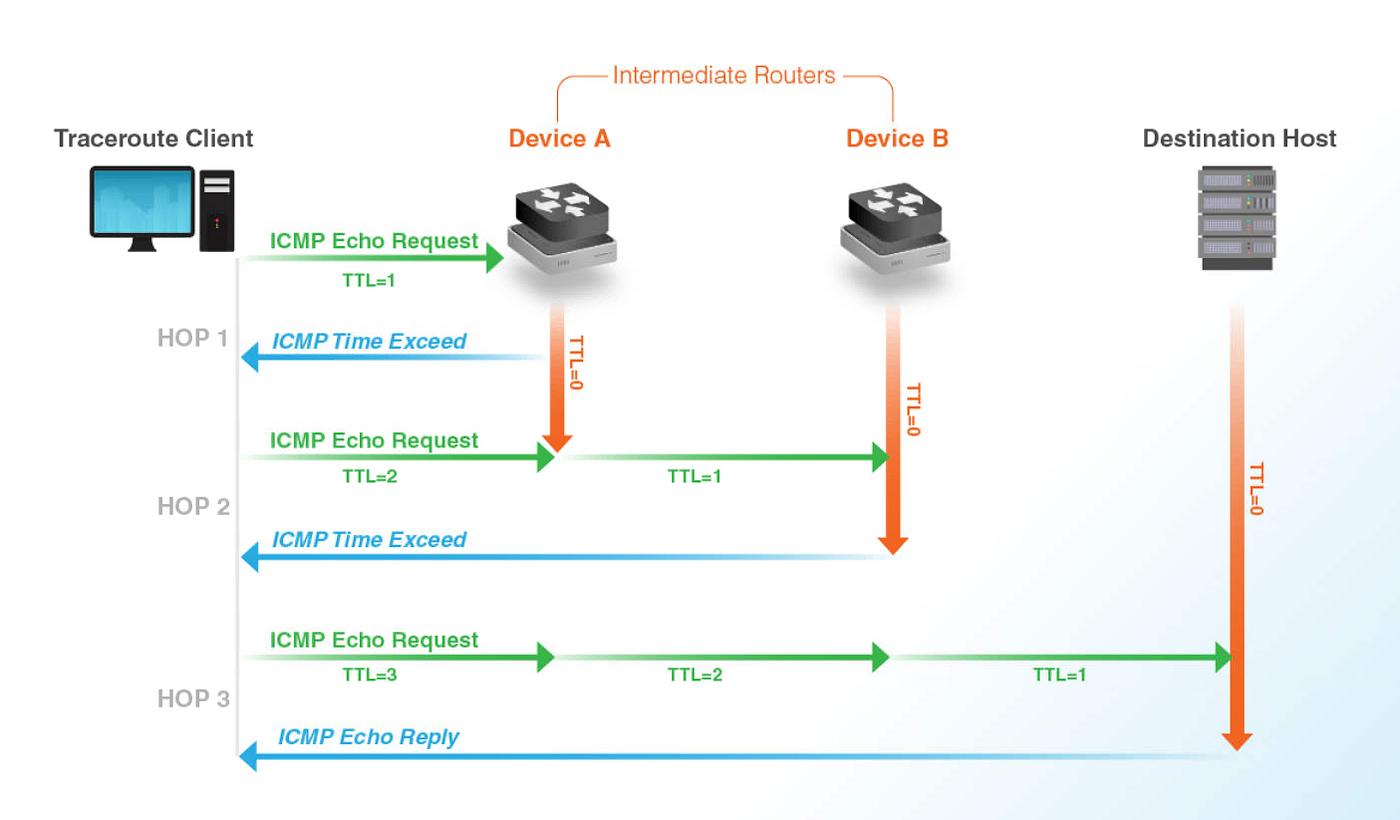
The tool sends a series of probes with gradually increasing hop limits. A hop limit tells a packet how many routers it can pass through before it must be discarded. In IPv4, this field is called the Time to Live, or TTL. In IPv6, it is called the Hop Limit.
When a router forwards a packet, it decreases the TTL or Hop Limit. When the value reaches zero, the router discards the packet and may send a response back to the source. Traceroute uses these responses to identify successive routers. After the tool has learned about the first hop, it sends another probe with a higher limit, then another, continuing toward the destination.
Traceroute measures the time between sending a probe and receiving a response. It normally sends several probes for each hop, which is why the output often contains three response times. Those numbers measure the time for a probe and reply to travel between your device and the responding router. They do not measure only the time spent processing the packet inside that router.
What Does a Traceroute Show?
A typical result has a numbered row for each hop. The first hop is usually your local router or another first device on the local network. Later hops may belong to your Internet provider, transit networks, hosting providers, or the destination’s network.
A simplified example might look like this:
traceroute to example.com, 30 hops max

 1  192.168.1.1       2.1 ms   1.8 ms   2.0 ms
 2  100.64.0.1        8.4 ms   8.1 ms   8.6 ms
 3  203.0.113.10     13.2 ms  12.9 ms  13.5 ms
 4  *                 *        *
 5  198.51.100.20    25.6 ms  25.1 ms  26.0 ms
The first column identifies the hop number. The next value is the responding router’s address or name. The remaining values are response times for the probes sent at that hop. In this example, hop 4 did not respond to the probes, but hop 5 did respond.
A responding hop is evidence that a probe received a reply from that point. It does not prove that every other part of the route is healthy. Likewise, a non-responding hop does not prove that the router is down. The device may be configured to forward traffic while ignoring or limiting diagnostic probes.
Traceroute can also show different paths at different times. Internet routing changes as networks adjust routes, balance traffic, handle outages, or apply policy. A route observed in one trace is a snapshot, not a permanent map.
How to Run Traceroute on Windows
Windows includes tracert. Open Command Prompt or PowerShell and enter a hostname or IP address:
tracert example.comWindows resolves the hostname to an IP address and then displays the hops it can observe. You can use -d to prevent tracert from resolving router addresses into names:
tracert -d example.comUsing -d can make results appear faster because Windows skips reverse DNS lookups for the intermediate addresses. This is useful when you care about the path and timing rather than the names associated with each router.
You can limit the maximum number of hops with -h and set the wait time for each response with -w. For example:
tracert -d -h 20 -w 2000 example.comThis command skips name lookups, stops after a maximum of 20 hops, and waits up to 2,000 milliseconds for a response to each probe. If a destination is far away or the path is slow, a low hop limit may stop the trace before it reaches the destination.
To test a particular IP address rather than a hostname, run:
tracert -d 203.0.113.25When comparing results, test the same destination consistently. A trace to a domain name and a trace to a particular IP address may follow different paths if the domain resolves to different servers.
How to Run Traceroute on macOS
On macOS, open Terminal and run:
traceroute example.comTo display numeric addresses without trying to resolve names, use:
traceroute -n example.comYou can limit the maximum number of hops with -m and adjust the wait time with -w. For example:
traceroute -n -m 20 -w 2 example.comThis asks for numeric output, limits the trace to 20 hops, and waits up to two seconds for a response at each hop. The exact options available may vary slightly between implementations, so check the local manual if a command option is not recognized:
man tracerouteTraceroute may take some time to finish because it sends several probes at each hop and waits for responses. If it appears to pause at a row, it may be waiting for replies from routers that do not respond to these probes.
How to Run Traceroute on Linux
Many Linux distributions include traceroute, but some may require you to install it first. A basic test is:
traceroute example.comTo avoid reverse DNS lookups and display only numeric addresses, use:
traceroute -n example.comYou can also set a maximum hop count and response wait time:
traceroute -n -m 20 -w 2 example.comOn Linux, the available command options depend on the installed traceroute implementation. If the command is missing, use your distribution’s package manager to install the appropriate package, or use an available alternative such as tracepath.
For IPv6 destinations, many Linux systems support:
traceroute -6 example.comIf the domain has both IPv4 and IPv6 records, the tool may select one address family by default. To compare the paths, run separate IPv4 and IPv6 traces where supported. This can help identify whether a connectivity problem affects one address family but not the other.
How to Read Each Hop
Start by checking the first hop. On a home network, it is often the local router. If the first hop responds quickly, your device can at least reach a router on the local network. If it does not respond, that alone does not prove a local failure because the router may filter diagnostic replies. Check whether other local devices and Internet services work before drawing a conclusion.
Next, compare the response times as the route progresses. A sudden and consistent increase that continues through later hops may point to a change in the path or a point where network delay begins. However, a high response time at one router followed by lower times at later routers often reflects how that router handles diagnostic traffic, not necessarily a delay affecting forwarded traffic.
Look for the last hop that responds, but treat it as a clue rather than a definitive fault location. The next router may be filtering probes, the return path may be different, or the destination network may block the type of response traceroute expects.
Finally, compare several runs and, where possible, test a second destination in the same service or network. A single trace can be affected by temporary congestion or filtering. Patterns across repeated tests are more informative than one isolated output.
What Does an Asterisk Mean?
An asterisk (*) means that traceroute did not receive a response to that probe within the wait period. A router may still have forwarded the probe toward the destination. It may simply have declined to send a diagnostic response.
Routers and firewalls often limit Internet Control Message Protocol (ICMP) messages or other diagnostic responses to protect performance and reduce unwanted traffic. Some networks permit normal application traffic while filtering traceroute probes. As a result, a trace can show one or more asterisks and then continue with responding hops later in the path.
If every hop after a certain point shows asterisks, the path may be filtered at that point, the destination may be unreachable, or the return traffic may be blocked. To distinguish these cases, test the actual service using the relevant application, such as a web browser or SSH client, and compare traces to other destinations.
Understanding Response Times and Latency
Traceroute’s timing values show how long it took for a probe to reach a responding hop and for the response to return. They include network delay in both directions and may be affected by congestion, queuing, and the router’s response policy.
A high value at one hop can be misleading. Routers prioritize forwarding transit traffic over responding to diagnostic packets addressed to themselves. A router may take a long time to reply to traceroute while forwarding ordinary traffic quickly. If the following hops show lower response times, that high value is less likely to represent a persistent delay in the data path.
A more useful pattern is a delay increase that begins at a hop and remains visible at later hops and the destination across multiple tests. Even then, traceroute alone cannot prove the exact cause. It can indicate where to investigate further, such as a provider handoff, a congested link, or a distant network segment.
Common Traceroute Patterns
If the first hop responds but later hops do not, the local network may be working while a later network filters diagnostic traffic. Check whether the destination service itself is reachable before assuming that the connection is broken.
If the trace reaches the destination but the application still fails, the network path may be functioning while the service has another problem. The server could be rejecting connections, the application could be unavailable, or a firewall could block the specific port.
If the trace stops at the same point every time and the destination is also unreachable, the last responding network can help narrow down where to ask for support. It does not necessarily identify the device responsible, since filtering and asymmetric return paths can make the apparent stopping point misleading.
If IPv4 works but IPv6 does not, or vice versa, run separate traces for each address family. The two paths may use different providers, routers, firewall policies, or destination servers. Comparing them can reveal whether the problem is specific to one side of the network.
Traceroute and Tracert Are Not Identical
The commands tracert and traceroute serve a similar purpose, but their probe methods and options can differ by operating system and implementation. Windows tracert commonly uses ICMP Echo probes. Unix-like implementations may use UDP by default, with some supporting ICMP or TCP probe modes.
This matters because a firewall may allow one kind of probe and block another. Two tools can therefore produce different output even when run from the same computer to the same destination.
Some traceroute implementations allow you to select the probe method. For instance, Linux versions may support options for UDP, ICMP, or TCP probes. TCP-based tracing can be useful when ordinary probes are filtered but a particular TCP service is reachable. The option syntax varies, so consult the local manual before relying on a specific flag.
When sharing results with a network administrator or provider, include the operating system, command, options, destination, and approximate time of the test. That context helps them interpret differences between traces.
Traceroute vs Ping
Ping tests whether a destination responds to a particular type of network probe and measures round-trip time. It is useful for checking basic reachability, but it does not show the intermediate path.
Traceroute attempts to reveal the sequence of responding routers toward a destination. It can help narrow down where replies stop or where a delay pattern begins, but it is more sensitive to filtering and router response policies.
These tools answer different questions. Use ping to test whether a destination responds. Use traceroute to inspect the path toward it. Neither tool alone guarantees that a website or application is healthy, because application-specific problems can occur even when basic network probes succeed.
A Practical Troubleshooting Workflow
Begin by confirming the destination name and address. If you are using a hostname, check that it resolves correctly. Then run traceroute and note the time, address family, command options, and destination.
Test the same destination more than once. If the output changes significantly, the problem may be intermittent or the route may have changed. If the trace is stable but the application is failing, check whether the service is listening, whether a firewall blocks its port, and whether the server returns an error.
Compare with another destination hosted by the same provider or in the same region. If several destinations show a similar issue starting at the same point, that gives a stronger indication that the affected network segment may deserve attention.
If you are reporting the issue to an Internet provider or hosting company, provide the raw output instead of only saying “traceroute fails.” Include the destination, time, operating system, and whether the destination service itself is unreachable. These details make the report easier to investigate.
Limitations of Traceroute
Traceroute does not show every router on the Internet. Some networks hide or filter their responses, and some routes use technologies that make hop information incomplete. Load balancing may also send different probes along different paths, so adjacent lines may not always represent one stable end-to-end route.
Response times are not direct measurements of how quickly the router forwards normal traffic. They measure the time for the probe and response, and routers may treat those diagnostic packets differently from regular application traffic.
Traceroute also does not prove who owns a router address, identify the exact cause of packet loss, or confirm that a route is authorised. Public routing and registration data require separate checks. For a broader review of a public IPv4 or IPv6 resource, use the IP Resource Readiness Checker.
Frequently Asked Questions
Is traceroute safe to use?
Traceroute is a standard diagnostic tool that sends network probes toward a destination. Running a few tests for troubleshooting is normal. Avoid generating excessive traffic or probing systems you do not administer at a high rate.
Why does traceroute show a different path each time?
Networks can change routes, use load balancing, or direct traffic through different providers. Probe traffic may also be handled differently from ordinary application traffic. Small path differences do not automatically indicate a fault.
Does an asterisk mean a router is down?
No. It means that traceroute did not receive a response to that probe within the timeout. The router may still forward traffic while filtering or limiting diagnostic replies.
Why does traceroute stop before reaching a website?
The destination network or an intermediate firewall may block the probe type. The website may still be reachable through normal HTTPS traffic. Test the service itself before concluding that the route is unavailable.
Can traceroute identify where packet loss occurs?
It can help identify where responses stop, but it cannot always prove where application traffic is being lost. Compare multiple runs, later hops, and the actual service. Tools such as mtr can provide repeated measurements, but their output also needs to be interpreted carefully.
Can I run traceroute to an IPv6 address?
Yes. Windows, macOS, and Linux support IPv6 route tracing, although command names and options differ. On Linux, traceroute -6 is commonly supported. On Windows, tracert can trace IPv6 when given an IPv6 destination.
Traceroute helps you see which routers respond as traffic travels from your device toward a destination. The first hop is often your local gateway, and later hops may belong to your Internet provider and other networks before reaching the destination.
Use tracert on Windows and traceroute on macOS or Linux. Check the first hop, compare response patterns across later hops, and repeat the test when results look unusual. Asterisks and isolated high response times are common and do not automatically prove that a network is broken.
The most useful conclusions come from combining traceroute with application tests, DNS checks, repeated measurements, and reports from other users or networks. Treat the output as evidence that helps guide investigation, rather than a complete diagnosis by itself.
To understand the local network portion of the path, continue with our guide to default gateways. For public address and routing checks, see the IP Resource Readiness Checker.